Tutorial: How to move text, itemnumbers of a hole or cavity
Goal:
Moving text, hole numbers and item numbers to another position.
Steps:
Moving text for a port or cavity.

- Select hole 100. Right mouse click and select Drag Hole Text [H] or use the shortcut Ctrl+H or just H.


The yellow lines indicate the text box. Place the box where you want it to be. To rotate the text press the spacebar.

You can do the same for the cavity.

Moving an item number for a port or cavity.
- Select hole / cavity 101. Right mouse click and select Drag Item Number [U] or the shortcut U.


The yellow lines indicate the text box. Place the box where you want it to be. If you want the item number to be engraved select the hole / cavity 101 and select Engrave number [Shift+U].…

The next window will appear.

- Mark the box in front of the text and press ok.

- At assist you can format the size and type for your engravings. Standard it is the same as the hole text settings.

Moving hole numbers for a port or cavity.
- Select hole 100. Right mouse click and select Move Hole Number Position [J] or the shortcut J.

The next window will appear. You have to give in a fixed height before you can move the hole numbers.


The yellow lines indicate the text box. Place the box where you want it to be.

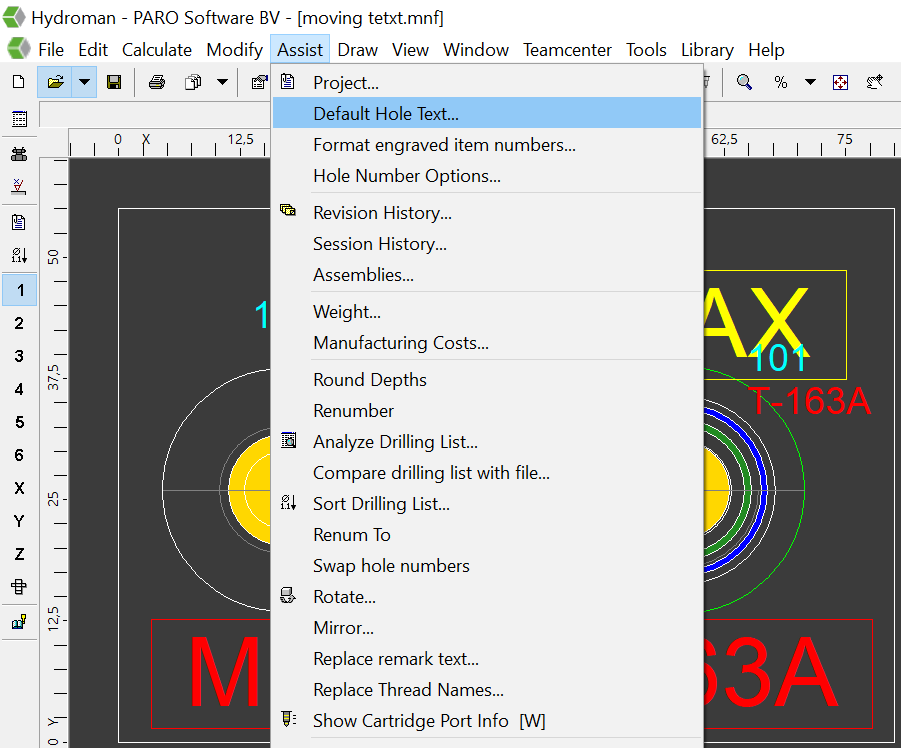
The text height for the port and cavity texts can be changed at Default Hole Text.